Sessionize to SpeakerTravel: Accepted to Booked
By Maarten Balliauw · Published
The Call for Papers is closed, evaluations are done, and you've hit "Accept" in Sessionize. Speakers are confirmed.
Now comes the part everyone dreads.
A spreadsheet with 40+ names. Emails asking speakers for flight preferences. A shared Google Sheet tracking who responded and who didn't. Forwarded booking confirmations. The occasional panicked message about a speaker who still doesn't have a ticket two weeks out.
There's a better way.
What Sessionize gives you (and where it stops)
Sessionize does its job well: managing your Call for Papers, running evaluations, handling speaker communication. Once speakers are accepted and confirmed, you have their names, email addresses, bios, session details, and any custom fields you collected during submission.
All of that is exportable as an Excel spreadsheet.
But that's where Sessionize stops. It doesn't book flights. It doesn't manage travel budgets. It doesn't issue tickets. The gap between "speaker accepted" and "speaker has a ticket" is where SpeakerTravel picks up.
One thing worth doing when setting up your CfP: add a custom question in Sessionize asking speakers for their nearest departure airport code (IATA code, like LHR or MUC). That way, when you export accepted speakers later, the airport code is already in the spreadsheet and SpeakerTravel can map it automatically during import.
Exporting your accepted speakers
In Sessionize, head to the Export page and download the speakers spreadsheet. The file will contain multiple worksheets, one for all submissions, one for accepted sessions and speakers, and so on.
You don't need to clean up the file, rename columns, or extract a specific sheet. Just download it as-is.
Importing into SpeakerTravel
SpeakerTravel has a 3-step import wizard that understands Sessionize's export format:
Step 1: Upload. Drop in the Sessionize XLSX file. SpeakerTravel detects it's a Sessionize export and picks the right worksheet, "Accepted Speakers", instead of defaulting to the first tab.
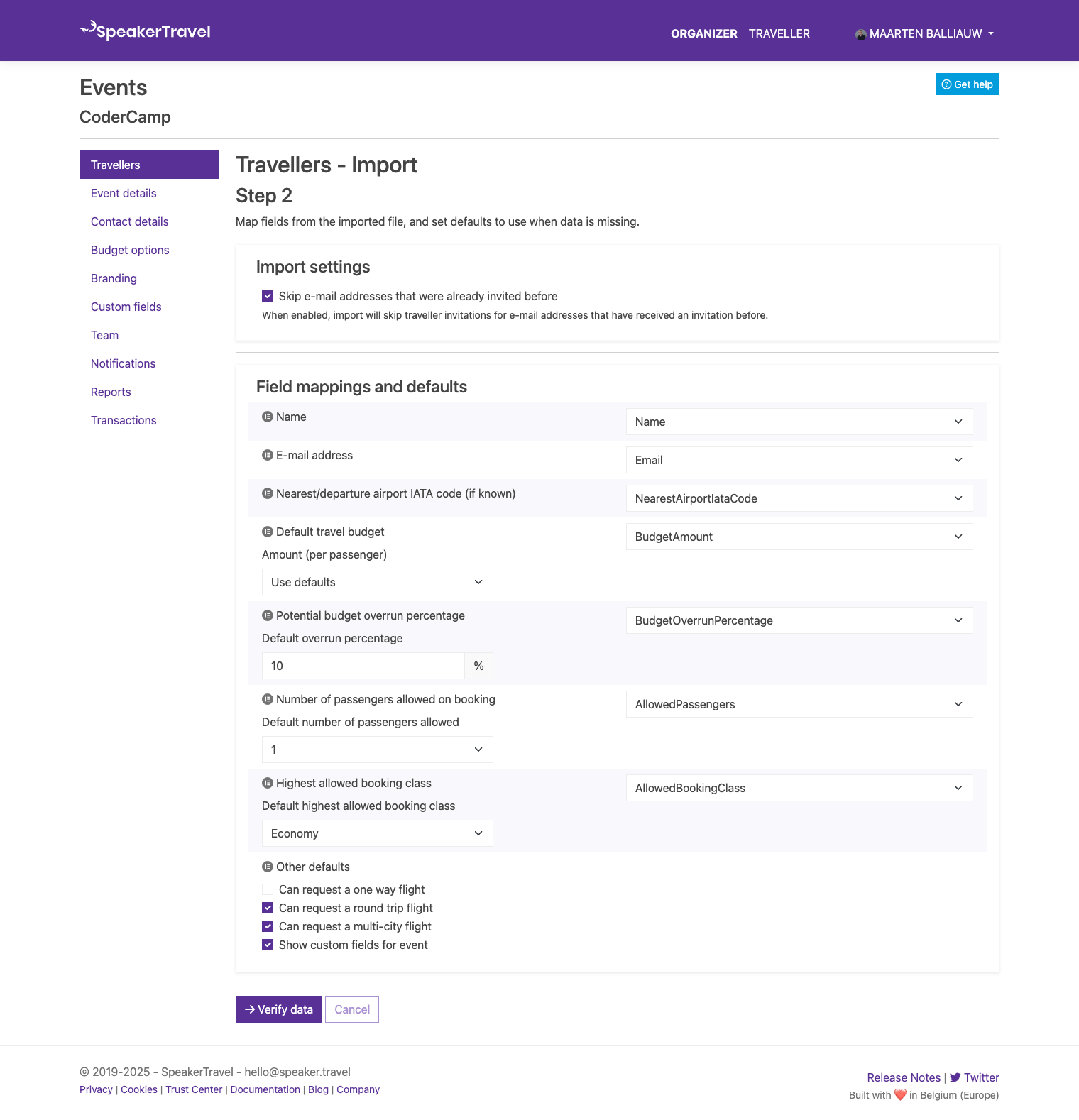
Step 2: Map and configure. Column headers from Sessionize are mapped to SpeakerTravel fields automatically (name, email, nearest airport code, etc.). For fields Sessionize doesn't have, like travel budget and booking class, you set defaults that apply to all imported speakers. What's the budget per speaker? Economy or premium economy? One passenger or two?
You can also set a budget overrun percentage: a margin above the budget that gets flagged for review rather than rejected outright.
Step 3: Review and invite. A preview shows every speaker about to be imported. Tweak individual details if needed: a keynote gets a higher budget, a local speaker doesn't need travel. Click "Import & invite travellers" and invitations go out.
Three steps. Your speakers can start booking.
Second round of acceptances? Export from Sessionize again and re-import. SpeakerTravel skips email addresses that were already invited, without duplicates.
What the speaker sees
We've been on both sides of this, organizing conferences and speaking at them. Speakers remember how travel went. A smooth booking experience is one of those things that makes them want to come back.
With SpeakerTravel, the speaker gets an email with a link, searches for flights or trains on their own time, and picks what works for them: the right airline, a better departure time, or a train if they prefer. They request the booking, you approve it, and the ticket shows up in their inbox. No need to front the cost and chase a reimbursement. No waiting on you to reply about options. They just book and go.
For larger events: the API alternative
If your conference has a more complex setup, like multiple events per year, custom tooling, or data from several sources, SpeakerTravel's API lets you create traveller invitations programmatically.
Pull accepted speakers from Sessionize's API, add budget info from your own systems, push it into SpeakerTravel. Power Automate, Logic Apps, or a script can handle this.
Overkill for most events. But for recurring conferences with dozens or hundreds of speakers, it removes even the export/import step.
The complete pipeline
Here's the full process, end to end:
- Run your CfP in Sessionize. Collect submissions, evaluate, select.
- Accept speakers and wait for confirmation.
- (Optional) Add a nearest airport code question to your Sessionize CfP so it's included in the export.
- Export accepted speakers as XLSX from Sessionize.
- Import into SpeakerTravel. Sessionize format is auto-detected. Set default budgets and booking class.
- Speakers search their own travel and pick flights, trains, whatever works.
- You approve, and tickets are issued for bookings within budget.
From "you're accepted" to issued tickets, without a single email thread about flight or rail options.
Frequently Asked Questions
How do I import speakers from Sessionize into SpeakerTravel?
Export accepted speakers as XLSX from Sessionize, upload the file into SpeakerTravel's import wizard. It recognizes the Sessionize format, maps the columns, and lets you set default budgets. Click import and invitations go out.
Can I avoid booking flights manually for my conference speakers?
Yes. After importing, speakers get a self-service link to search and select their own flights or trains within your budget. You approve with one click and tickets are issued.
What if I accept more speakers after the first import?
Export from Sessionize again and re-import. SpeakerTravel skips email addresses already invited, so you won't get duplicates.
Does SpeakerTravel work with tools other than Sessionize?
Yes. You can import from any Excel or CSV file. For more complex setups, the API lets you create invitations programmatically from whatever source you use.
What should I add to my Sessionize CfP for smoother travel booking?
Add a custom question asking speakers for their nearest departure airport code (IATA code like LHR or MUC). It gets included in the export and maps automatically during import.